
In this article, we provides simple step-by-step instructions on how to install the MTK USB Driver on a Windows computer easily. The guide will fully working with Windows 7, 8, 8.1, 10, and Windows 11 easily.
Prerequisites: The MTK USB Driver work on all Windows system, including Windows XP,Windows 7/ 8, 8.1/10 and also the latest version of the windows 11 (32bit or 64 bit) architecture version.
Read: MediaTek MTK SP V5.1453
How to Install MTK USB Driver on Windows Computer
- Download Mediatek USB driver according to your PC’s OS (32-bit or 64-bit).
- Open the downloaded folder and extract the file.
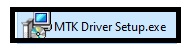
- Then open the folder and double click to run the Setup.exe.
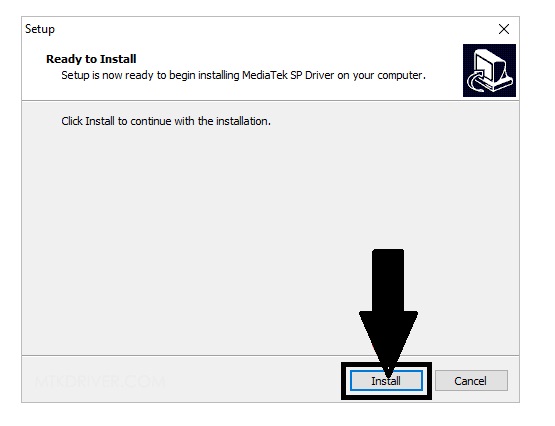
- You will get Installation Wizard Setup, click on the Install button there.
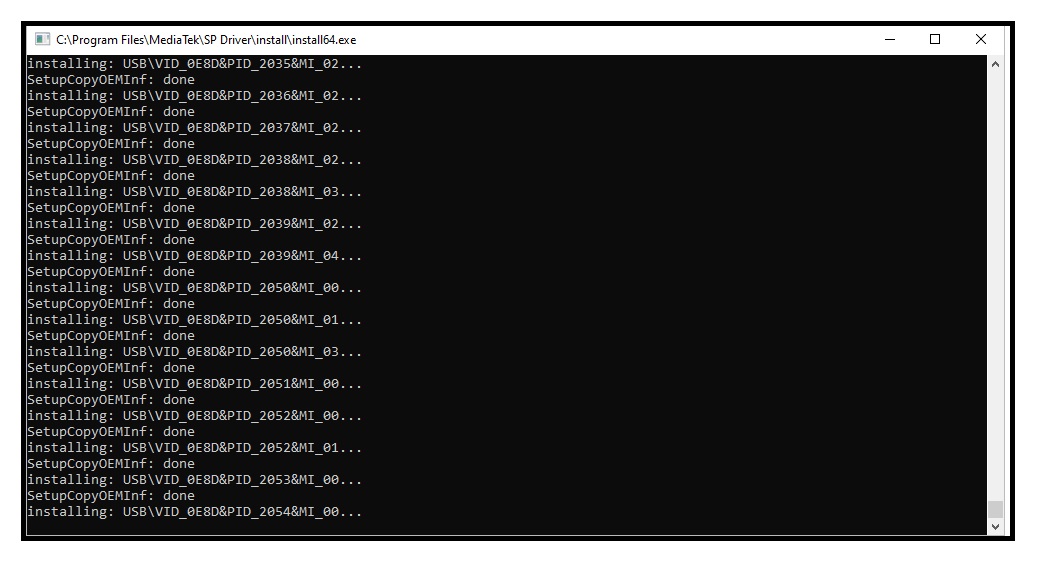
- Now the MTK SP Driver installation process will start,
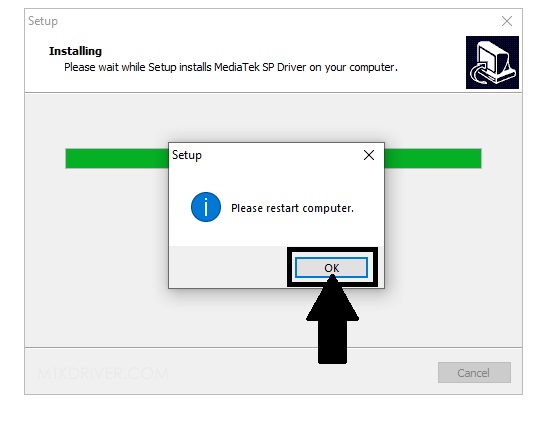
- Then Tap Ok to “Please Restart Computer” .
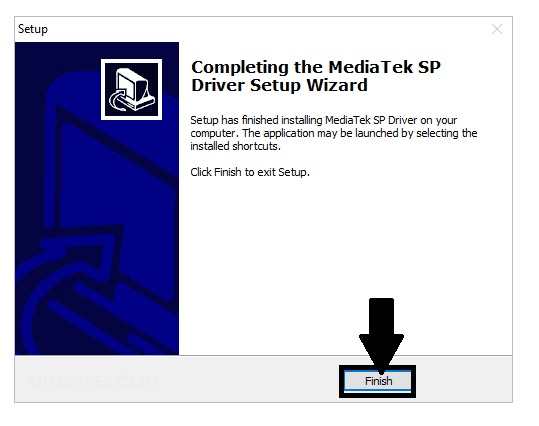
- After that, Tap Finish to close the Setup
- Done, You have successfully install the Driver on your Windows Computer.
Notes:
Before installing the working driver, head over to our page Download latest version page.
Install once: Well, here I share the best and simple way to install and Download MediaTek MTK SP Driver v5.2307 Latest Version for Windows 7/8/10/11. I think I clear all your problems regarding the MTK Driver error problem.
Uninstall: If you looking to delete or uninstall MTK USB Driver from your Windows computer, then read our How-to Uninstall MTK Driver guide.
If you are still stuck between some steps or not understand anything relating to this topic, you can let us know in the comment section below.