
In this article, we provides simple step-by-step instructions on how to Uninstall or Remove MTK USB Driver on a Windows computer easily. The guide will fully working with Windows 7, 8, 8.1, 10, and Windows 11 easily.
Note: The following instructions for removing the MTK USB driver through Programs and Features in the Windows Control Panel. For users who manually installed MTK driver from Device Manager, we suggest them to uninstall it via that way. ‘)
Download Latest version: MTK Driver
How to Uninstall or Remove MTK USB Driver
- Open Run on your Windows by pressing Windows + R key.
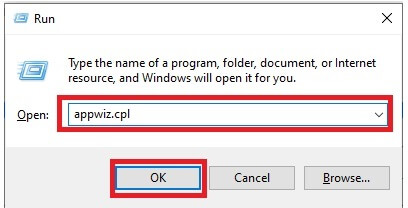
- After that, type
appwiz.cpland click on the OK.
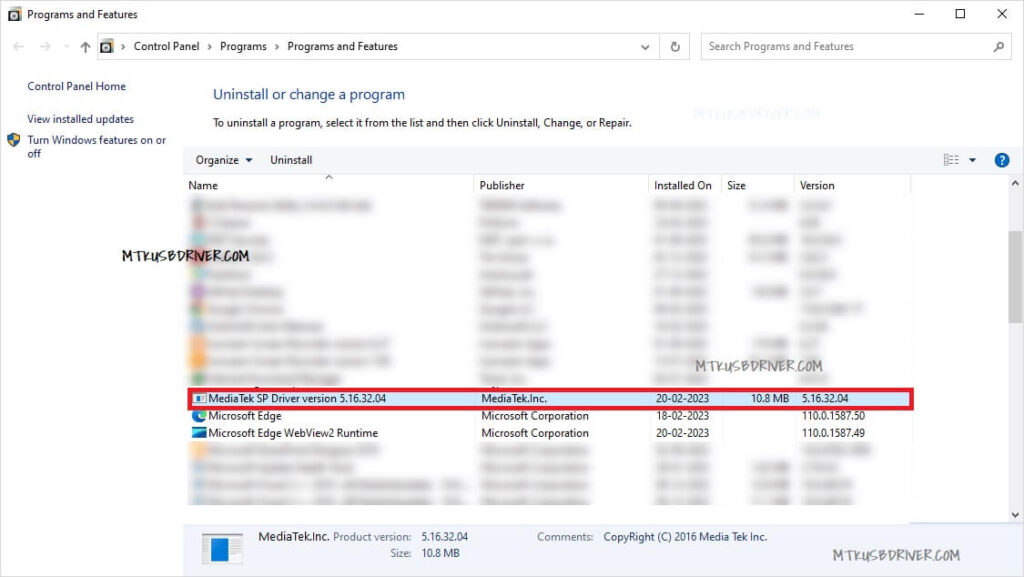
- It will open the Programs and Features.
- The Uninstall or change a program list will open,
- Check & Select MediaTek MTK USB Driver
- Next, Right Click & Select the Uninstall button
- Alternatively, double click on the MTK Driver to launch the Uninstallation Window:
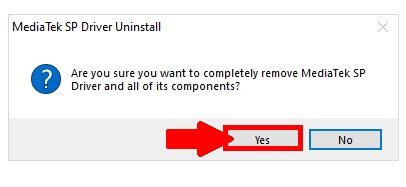
- Click Yes on confirmation popup.
- Next, Click Yes.
- Now, The Uninstall process will be started.
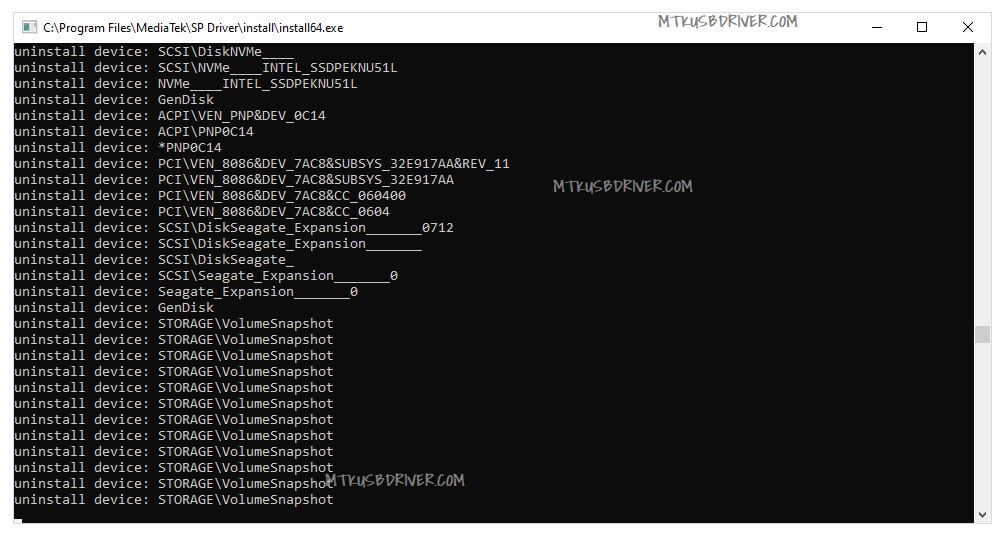
- It will take few minutes.
- Now the MTK Driver will be uninstalled from the computer.
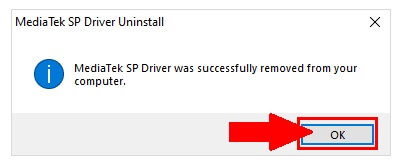
- Click Ok on the A Success Message popup.
- Now restart your Windows.
- Once the computer is restarted, all the will remove all leftover MTK driver files and registry entries.
Notes:
Before installing the working driver, head over to our page Download latest version page.
Install once: Well, here I share the best and simple way to install and Download MediaTek MTK SP Driver v5.2307 Latest Version for Windows 7/8/10/11. I think I clear all your problems regarding the MTK Driver error problem.
installation: If you looking for how to install MTK USB Driver from your Windows computer, then read our How-to install MTK Driver guide.
If you are still stuck between some steps or not understand anything relating to this topic, you can let us know in the comment section below.